
4.1 API Keys
Where to find it: Botisst → API Keys.
This screen holds two independent fields, one per supported AI provider:
- OpenAI – API Key field, with a “Generate your OpenAI API key here” link.
- Google Gemini – API Key field, with a “Generate your Google Gemini API key here” link.
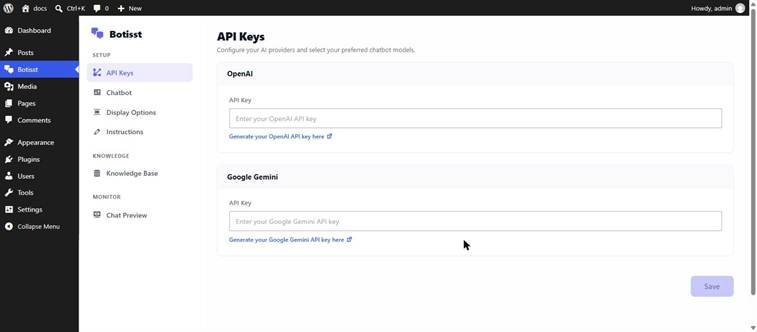
The API Keys screen. Only one key is required — add whichever provider you plan to use.
You only need to fill in the key for the provider you intend to use. The embedding provider chosen later in Knowledge Base → Database must match a provider you’ve added a key for, otherwise the Knowledge Base screen shows “✗ API Key Missing” and blocks indexing.
- Paste your API key into the field for your chosen provider.
- Click Save at the bottom of the screen.
4.2 Chatbot
Where to find it: Botisst → Chatbot. This screen has three tabs: General, Advance, and Style.
General tab
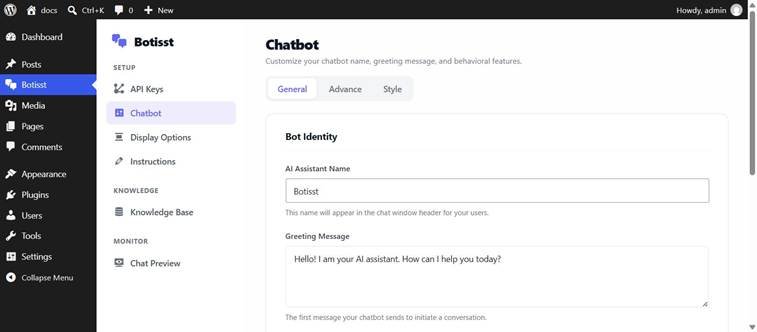
Chatbot → General: bot identity and error messaging.
| Field | What it does |
| AI Assistant Name | The name shown in the chat window header (default: “Botisst”). |
| Greeting Message | The first message the chatbot sends automatically when a visitor opens the chat. |
| Support System URL | The link visitors are sent to if they click “support agent” after an error. |
| API/Server Error Message | Custom text shown when a connection or API error occurs. Supports the {support_url} placeholder, which is replaced with a clickable “support agent” link. |
Advance tab
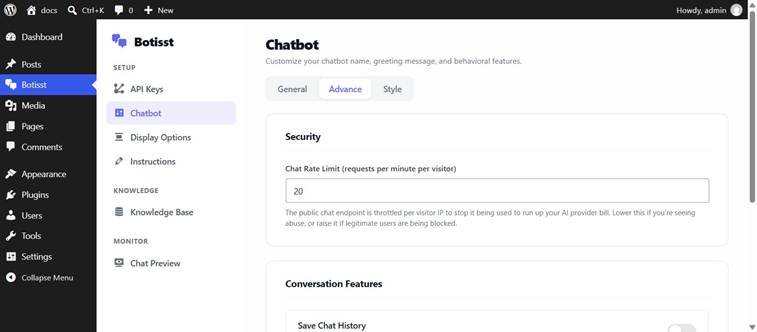
Chatbot → Advance: rate limiting and conversation features.
| Field | What it does |
| Chat Rate Limit | Requests per minute allowed per visitor IP address on the public chat endpoint. Default: 20. Lower it if you see abuse; raise it if real visitors are being blocked. |
| Save Chat History | Toggle. Enables user session continuity so a returning visitor’s conversation can resume. Off by default. |
| Enable Suggested Questions | Toggle. Shows quick-start suggestion questions in the chat window. Off by default. |
Style tab
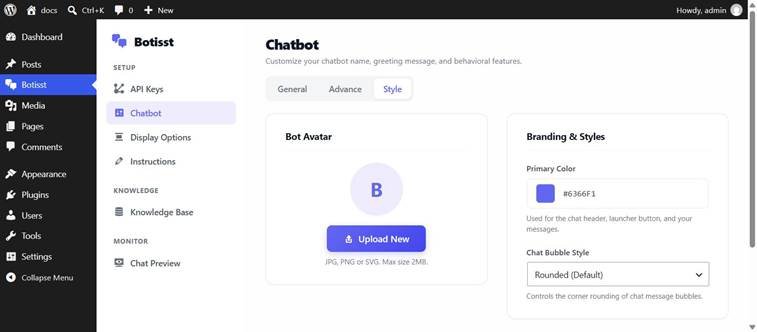
Chatbot → Style: avatar and branding.
| Field | What it does |
| Bot Avatar | Upload a custom avatar image (JPG, PNG, or SVG, max 2 MB) to replace the default letter icon. |
| Primary Color | Hex color used for the chat header, launcher button, and visitor message bubbles. Default: #6366F1. |
| Chat Bubble Style | Corner rounding of message bubbles: Rounded (default), Square, or Pill. |
Click Save on any tab to apply changes. Each tab saves independently.
4.3 Display Options
Where to find it: Botisst → Display Options.
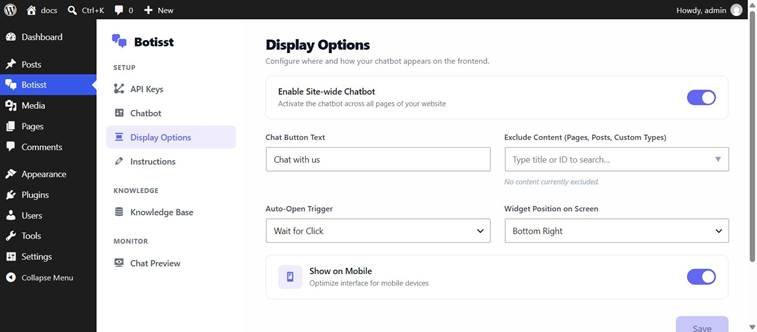
Display Options screen, shown with the default configuration.
| Field | What it does |
| Enable Site-wide Chatbot | Master toggle. When on, the floating chat launcher appears on every page of the site. Enabled by default. |
| Chat Button Text | Label text for the launcher (default: “Chat with us”). |
| Exclude Content | Search box to pick specific Pages, Posts, or custom post types where the widget should NOT appear. |
| Auto-Open Trigger | “On Page Load” (chat window opens automatically) or “Wait for Click” (default — visitor must click the launcher). |
| Widget Position on Screen | Bottom Right (default) or Bottom Left. |
| Show on Mobile | Toggle to optimize and display the widget on mobile devices. Enabled by default. |
4.4 Instructions
Where to find it: Botisst → Instructions.
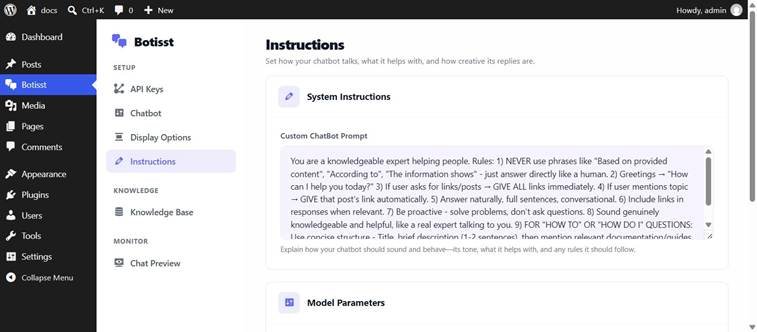
Instructions → System Instructions (custom prompt).
The Custom ChatBot Prompt box holds the system prompt sent to the AI model on every request. The plugin ships with a detailed default prompt instructing the assistant to answer directly, avoid phrases like “based on provided content,” proactively share relevant links, and keep answers concise. You can rewrite this prompt entirely to change the assistant’s tone, scope, and rules.
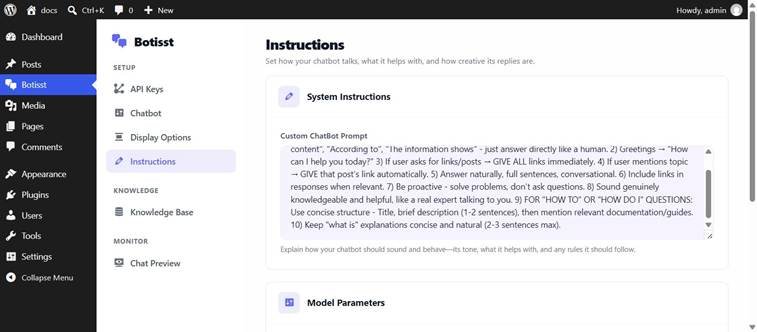
Instructions → Model Parameters: Chat Accuracy and Max Tokens.
| Field | What it does |
| Chat Accuracy (0–2, default 0.7) | Maps to the AI model’s temperature. Lower values give focused, deterministic answers; higher values give more creative/random answers. The UI warns that values above 1.0 are rarely needed. |
| Max Tokens (default 500) | The longest reply the chatbot can send in a single message. |