
Where to find it: Botisst → Knowledge Base.
This is Botisst’s Retrieval-Augmented Generation (RAG) engine. It lets you feed the assistant facts, links, and existing site content, which it converts into vector “embeddings” and searches through when answering visitor questions. The screen is split into two tabs: Sources and Database.
5.1 Sources tab #
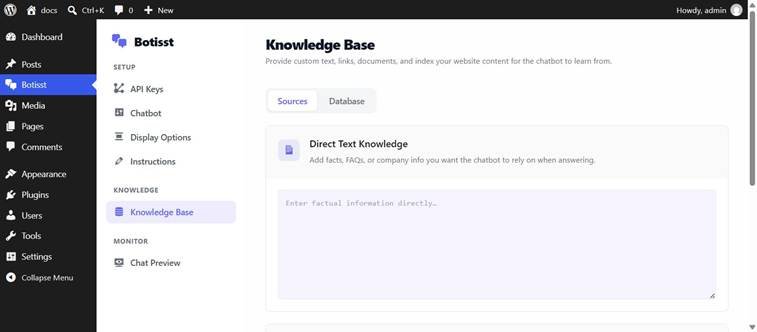
Knowledge Base → Sources: Direct Text Knowledge and Web Pages.
- Direct Text Knowledge: A free-text box for facts, FAQs, or company information the assistant should know directly.
- Web Pages (URLs): An “+ Add URL” button to register web page addresses the plugin will periodically read and use when answering.
5.2 Database tab #
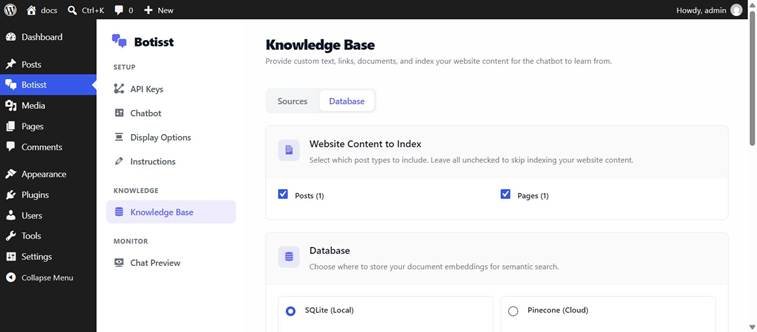
Knowledge Base → Database: content indexing, vector storage, and embedding provider.
- Website Content to Index: Checkboxes for Posts and Pages (each shows a live count). Leave both unchecked to skip indexing site content entirely.
- Database: SQLite (Local) – zero-configuration local vector storage — or Pinecone (Cloud) – a managed service that requires its own API key.
- Embedding Configuration: Choose OpenAI (text-embedding-3-small) or Google Gemini (gemini-embedding-001) to turn your knowledge base into searchable vectors. This screen shows a live status indicator (✗ API Key Missing / ✓ Ready) and the required index dimensions (1536 for the default OpenAI model).
Note: Saving Direct Text Knowledge does not require an API key and was confirmed working during testing (a “Knowledge base and RAG settings saved successfully!” message appeared, and the text persisted after reloading the page). Actually converting that text — or indexed Posts/Pages — into searchable vector embeddings does require a valid API key for the selected embedding provider.
How to train the assistant on your content #
- Go to Botisst → API Keys and save at least one valid API key (§4.1).
- Go to Botisst → Knowledge Base → Sources and add any direct facts or FAQ text, plus any web page URLs you want the assistant to reference.
- Switch to the Database tab and check Posts and/or Pages if you want existing site content included.
- Choose SQLite (Local) unless you specifically need Pinecone’s cloud storage.
- Select an Embedding Provider that matches an API key you’ve added, confirm the status shows ready, and click Save.